Figma has become the heartbeat of modern design collaboration, an all-in-one platform that brings together creativity, prototyping, and teamwork. And with powerful Figma plugins driving automation, accessibility, and AI-powered creativity, the design process has reached a whole new level. These plugins extend Figma’s core capabilities, helping designers streamline workflows, enhance style systems, and collaborate more efficiently than ever before.
In 2025, staying productive isn’t just about having design talent – it’s about using the right tools to enhance that talent. Whether you’re crafting UI systems, creating illustrations, or optimizing accessibility, the right Figma plugins can save time, ensure consistency, and boost design quality.
Let’s explore the most essential Figma plugins every designer should use in 2025, grouped by category to help you find what fits your workflow best.
Core Design Enhancement Plugins
Explore essential plugins for managing color, typography, and layout systems to maintain consistent, polished, and professional design outcomes.
1. Color & Style Management Plugins
Color is one of the most powerful elements in design – it defines emotion, clarity, and brand personality. Managing multiple palettes, shades, and accessibility standards manually can be tedious. Thankfully, Figma offers plugins that simplify color exploration and control.
Top Functions & Benefits:
- Palette Creators: Generate harmonious color schemes automatically based on brand colors or images.
- Gradient Generators: Add dynamic, fluid gradients that make UI elements come alive.
- Contrast Checkers: Ensure text and background combinations meet WCAG accessibility standards.
- Theme Switchers: Toggle instantly between dark and light mode to visualize how your design behaves across themes.
In 2025, these plugins often use AI to analyze brand materials or reference images and automatically generate a style system, giving designers more creative freedom with less manual setup.
Example Plugins:
Color Palette Generator, uiGradients, Beautiful Shadows, Picular Colors
2. Typography & Text Utilities
Typography defines tone and legibility. Whether you’re designing a bold landing page or a minimalist dashboard, Figma’s typography plugins can simplify text handling and improve readability.
Popular Use Cases:
- Font Pairing Tools: Suggest ideal heading-body text combinations that maintain harmony.
- Auto-Resizing & Responsive Text: Adjust text automatically based on container or screen size.
- Text Styler Plugins: Apply global font updates or size changes across all screens with one command.
- Alignment Helpers: Fine-tune spacing and hierarchy for cleaner visual flow.
These utilities not only save time but ensure that every piece of text aligns with your design system, maintaining brand consistency across pages and platforms.
Example Plugins:
Font Preview, Better Font Picker, Typescale, Google Fonts Plugin
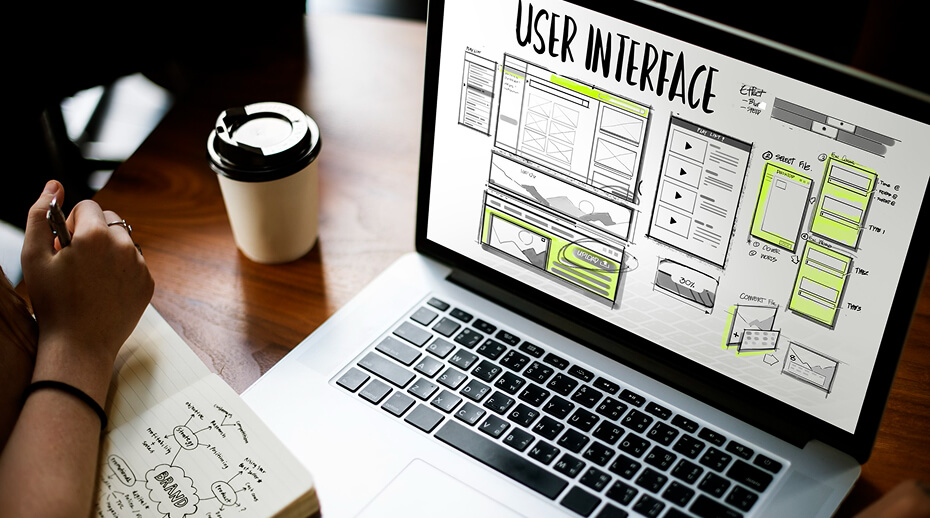
3. Layout & Design System Tools
For teams managing complex products, design systems are essential for scaling efficiently. The best Figma plugins in this category streamline system creation, documentation, and maintenance.
Key Features:
- Auto Layout Enhancers: Go beyond Figma’s default auto-layout options with advanced padding and alignment controls.
- Grid & Spacing Generators: Quickly set up modular grids and consistent spacing patterns.
- Component Finders: Search, tag, and organize reusable design components easily.
- Documentation Plugins: Export design tokens, color values, and typography rules for developer handoff.
Design system plugins in 2025 focus heavily on consistency, automation, and collaboration, reducing the friction between design and development.
Example Plugins:
Autoflow, Design System Organizer, GridGen, Component Master
Creative Asset & Visual Plugins
Enhance your visuals effortlessly with plugins offering stunning illustrations, icons, and mockup tools that elevate presentation quality.
1. Illustration & Icon Resources
Visuals tell stories that words can’t. With illustration and icon resource plugins, you can access rich libraries or generate visuals directly inside Figma.
Highlights:
- Vector & Icon Libraries: Browse thousands of ready-to-use icons from collections like Feather, Material, or custom sets.
- Illustration Integrators: Insert customizable characters, backgrounds, and illustrations with adjustable color schemes.
- SVG Cleanup Tools: Optimize and simplify vector shapes for faster exports and lighter files.
This category is a goldmine for designers who want to maintain visual consistency while minimizing time spent searching external resources.
Example Plugins:
Blush, Iconify, Humaaans, Vector Logos
2. Collaboration & Workflow Enhancers
In today’s hybrid work environment, effective collaboration tools are vital. Figma’s core already supports live co-editing, but plugins take teamwork to the next level.
Essential Plugins Include:
- Real-Time Feedback Sync: Collect, organize, and track client or team comments in one place.
- Version Control Managers: Compare file versions, restore older states, and document design decisions.
- Developer Handoff Tools: Automatically generate CSS, React, or Swift code snippets for engineers.
- Design Review Dashboards: Summarize progress, components, and handoff readiness.
These plugins make collaboration smoother, ensuring your design-to-development workflow stays transparent and efficient.
Example Plugins:
Comments Manager, Figmotion, Zeplin Connector, FigJam Sync
Collaboration, Workflow & Productivity Tools
Improve teamwork and efficiency using plugins that streamline communication, version control, and project management within Figma.
1. Image & Mockup Utilities
Images add realism and emotion to interfaces, but optimizing them is often time-consuming. With the right plugins, designers can transform raw visuals into polished assets instantly.
Common Capabilities:
- Background Removers: Eliminate unwanted backgrounds with AI-powered tools.
- Smart Crop & Resize: Automatically fit images to various frame sizes without distortion.
- Mockup Generators: Display UI designs on realistic device frames for presentations or portfolios.
- Image Compressors: Reduce file size while maintaining clarity, improving both speed and performance.
For product designers, these plugins are invaluable for showcasing prototypes in a professional, client-ready manner.
Example Plugins:
Remove BG, Mockup, Image Palette, TinyImage Compressor
2. Automation & Productivity Boosters
Every designer has tasks they repeat daily – renaming layers, exporting assets, or cleaning up components. Automation plugins in 2025 are built to eliminate busywork.
Most Useful Features:
- Batch Rename & Resize: Rename multiple frames, layers, or components in one step.
- Auto Cleanup: Remove unused styles, hidden layers, or empty groups with a click.
- Component Organizers: Sort and tag reusable assets automatically.
- Smart Export Tools: Set up export presets for different platforms or devices.
These plugins make your workflow leaner, helping you focus on what really matters: creativity and design thinking.
Example Plugins:
Batch Styler, Clean Document, Rename It, Builder.io Export

Quality, Accessibility & Code Integration Plugins
Ensure accessibility, test performance, and bridge the gap between design and code with AI-powered and development-friendly plugins.
1. Accessibility & Testing Tools
Designing for accessibility isn’t just ethical – it’s required for usability and inclusivity. Accessibility plugins ensure your designs are usable by everyone, regardless of ability.
Notable Features:
- Contrast Checkers: Automatically highlight color combinations that fail accessibility guidelines.
- Text Readability Tests: Evaluate font sizes, weights, and line spacing for legibility.
- Screen Reader Simulation: Understand how assistive technology interprets your design.
- Automated Audits: Scan your layout for contrast, labeling, and interaction issues before handoff.
These plugins empower designers to bake accessibility into their workflow instead of treating it as an afterthought.
Example Plugins:
Contrast, Able, Stark, A11y Focus Orderer
2. AI & Code Integration Plugins
Artificial Intelligence is reshaping the design process – and Figma is no exception. AI-driven plugins now help designers automate layout creation, content generation, and code export.
AI Capabilities to Explore:
- Generative Layouts: Suggest interface variations or adapt layouts to different screen sizes automatically.
- AI Copy Generators: Write realistic placeholder text or UX copy that matches your tone and context.
- Design-to-Code Tools: Convert Figma components directly into HTML, CSS, or framework-specific code like React or Flutter.
- Smart Assistants: Use natural language commands to resize, recolor, or rearrange elements in real time.
These tools reduce handoff friction and bring designers closer to functioning prototypes – faster than ever before.
Example Plugins:
Magician, Anima, DesignerBot, Locofy.ai
Exploring Specialized & Emerging Plugin Categories
Discover niche and experimental plugins designed to push the boundaries of creativity and innovation in modern UI/UX design.
1. Additional Helpful Categories
While the major plugin categories cover most workflows, a few bonus tools deserve mention for niche but powerful use cases:
- Animation Plugins: Add motion transitions, parallax effects, and prototype animations.
- Data Populators: Import real data (from CSV or APIs) to simulate realistic content.
- Localization Plugins: Automatically translate UI copy into multiple languages.
- Design QA Tools: Compare developer-implemented interfaces with Figma designs for pixel perfection.
These specialized plugins are ideal for advanced designers working on large-scale or multi-market projects.
Example Plugins:
Animockup, Content Reel, Google Sheets Sync, LottieFiles
Best Practices for Using Figma Plugins Efficiently
Before loading your workspace with every new plugin, keep these principles in mind:
- Quality Over Quantity: Stick to plugins that genuinely improve your workflow; too many can slow performance.
- Stay Updated: Plugins evolve; check for version updates to maintain compatibility.
- Organize Your Toolkit: Group plugins by workflow stage (e.g., typography, prototyping, export).
- Collaborate with Consistency: Ensure your team uses the same plugin versions to avoid file mismatches.
- Test Before Scaling: Try new plugins on small projects before integrating them into your design system.
Final Thoughts
In 2025, design is no longer about pixels alone – it’s about speed, collaboration, inclusivity, and automation. Figma’s ecosystem reflects this shift perfectly. From AI-powered creativity to accessible design checks, the right plugins can help you build smarter, faster, and more confidently than ever before.
The tools you choose define the quality and efficiency of your work. So, start small – install a few essential Figma plugins, test their impact, and gradually build your personalized design stack. Because in today’s fast-paced design landscape, innovation isn’t just about talent – it’s about how you use technology to empower creativity.
How InCreativeWeb Helps
At InCreativeWeb, we design visually stunning, user-friendly, and conversion-focused websites tailored to your brand identity. Our team leverages the latest Figma plugins, design systems, and UX best practices to create digital experiences that truly stand out. From wireframes to final live websites, we ensure creativity, consistency, and quality throughout.
Get in touch with us today to transform your ideas into a powerful, modern website that converts customers into loyal fans!
FAQs
1. What are Figma plugins, and why are they important for designers?
Figma plugins are add-ons that extend Figma’s core features, helping designers automate tasks, improve workflow, and boost creativity.
2. How do I install and manage plugins in Figma?
Go to Figma’s Community tab, search for your desired plugin, click Install, and access it later from the Plugins menu.
3. Which Figma plugins are best for UI/UX designers in 2025?
Plugins for layout automation, accessibility checks, AI-assisted design, and design-to-code conversion are essential for modern UI/UX work.
4. Are Figma plugins free to use?
Most plugins are free, though some offer premium versions or subscriptions with extra features and advanced integrations.
5. How can plugins improve collaboration in Figma?
Collaboration plugins enhance version control, real-time feedback, and developer handoff—ensuring seamless teamwork across design projects.
6. Do Figma plugins slow down performance?
Too many active plugins may affect speed. Stick to essential, regularly updated plugins for the best performance and reliability.
7. What are the most innovative Figma plugin trends in 2025?
AI-powered design generation, accessibility automation, and design-to-code tools are leading the next wave of Figma innovation.
Author
Jayesh Patel
Jayesh Patel is a Professional Web Developer & Designer and the Founder of InCreativeWeb.
As a highly Creative Web/Graphic/UI Designer - Front End / PHP / WordPress / Shopify Developer, with 14+ years of experience, he also provide complete solution from SEO to Digital Marketing. The passion he has for his work, his dedication, and ability to make quick, decisive decisions set him apart from the rest.
His first priority is to create a website with Complete SEO + Speed Up + WordPress Security Code of standards.