AI agents like Claude, ChatGPT, and Cursor can now manage a WordPress website directly – drafting posts, uploading images, updating SEO metadata, and running admin tasks from a single chat prompt. MCP (Model Context Protocol) makes this possible by allowing AI tools to connect with WordPress without custom coding. This guide explains what MCP is, how it connects to WordPress, and how to set it up step by step.
What Is MCP (Model Context Protocol)?
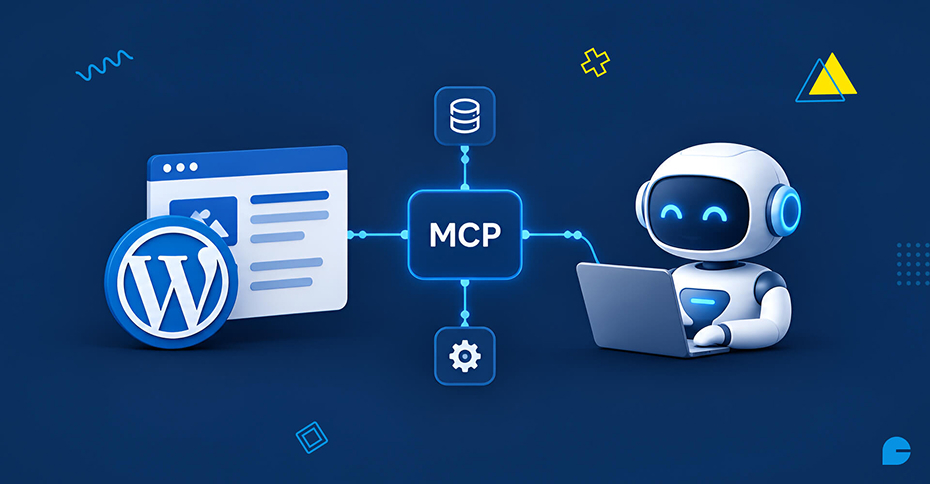
MCP is an open protocol that allows AI assistants to connect with external tools and services using one shared “language,” instead of requiring a custom integration for every AI-to-app connection. Think of it as a universal adapter: any AI client that supports MCP can work with any service that also supports it – including WordPress.
With MCP, AI agents can use WordPress features like creating posts, uploading media, and managing plugins. They follow simple instructions and use the built-in WordPress REST API to complete tasks.
How Does MCP Connect to WordPress?
WordPress doesn’t need anything exotic to support MCP. WordPress MCP servers use the existing REST API and Application Passwords for authentication. So, you don’t need to build a custom plugin from scratch. In practice, site owners either:
- Use a hosted MCP connector plugin (the fastest, no-code route for most business owners), or
- Use the official WordPress MCP Adapter paired with the WordPress 6.9+ Abilities API, which is built for developers and needs manual configuration.
Either way, the AI agent authenticates as a WordPress user account and can only perform actions that account’s role permits – which is the same permission model WordPress has always used for editors, authors, and admins.
What Can AI Agents Actually Do on a WordPress Site?
Once connected, an AI agent can typically:
- Draft and publish blog posts: set titles, categories, tags, and content from a prompt
- Upload media: pull images from a public URL straight into the media library, with alt text
- Manage taxonomies: create or rename categories and tags
- Run admin tasks: clear cache, check active plugins, activate/deactivate plugins
- Use plugin abilities: on WordPress 6.9+, many popular plugins expose their own actions that the AI can discover and run automatically, including SEO plugins, form builders, and landing page tools
- Manage WooCommerce: draft products, check orders, update order status (WooCommerce 10.9+ ships native MCP support)
Every new post created this way is saved as a draft first – nothing publishes automatically without human approval.
Also Read: AI Discovery Explained: How to Prepare Your Website for AI Search
Step-by-Step: How to Connect an AI Agent to WordPress Using MCP
What you need before starting:
| Requirement |
Why it matters |
| Self-hosted WordPress (WordPress.org) |
MCP connectors work with self-hosted sites; WordPress.com uses a separate built-in setup |
| WordPress 6.9+ (recommended) |
Needed for plugin “abilities” like AI-driven SEO or form edits |
| HTTPS enabled |
Application passwords require SSL and won’t work over plain HTTP |
| Public site accessibility |
Local/dev sites need a tunnel to be reachable |
Step 1: Set up an MCP server on your WordPress site
Install an MCP connector plugin from the WordPress plugin directory and activate it. Inside your dashboard, it will generate a unique MCP server URL and a short setup guide, keep this URL handy for the next step.
Step 2: Connect your AI tool
Most AI clients accept the MCP server URL directly:
- Claude: Add it once as a custom connector in Claude.ai; it syncs automatically to Claude Desktop, Claude Code, and mobile.
- ChatGPT: You can find many MCP-for-WordPress tools in the ChatGPT Apps marketplace and connect them without editing any config files.
- Cursor / Windsurf: Add the server URL to the client’s mcp.json (or equivalent) config file and restart the app.
Step 3: Authorize the connection
Your WordPress dashboard will generate a one-click authorization prompt. Paste it into your AI chat, click the link it returns, and approve access. You never see or manually copy a password – WordPress handles this through its built-in Application Passwords feature.
Real-World Use Cases
- “Create a draft post titled ‘X’ with an intro paragraph about Y.” – the AI drafts and saves it to your dashboard for review.
- “Upload this image to my media library and set the alt text to ‘Z’.” – pulls a public image URL straight in.
- “Find every post missing a meta description and write one for each.” – useful with SEO plugins that expose meta-editing abilities.
- “Draft a new product called ‘X’ with a description and price.” – for WooCommerce stores.
- “What can you do on my WordPress site?” – the AI lists every ability your installed plugins currently expose.
Is WordPress MCP Safe?
Security is the top question most site owners have, and it comes down to three built-in WordPress mechanisms:
- Application passwords: a separate, revocable password is generated for each connected tool; nothing touches your main login.
- Role-based permissions: The AI can only perform actions that the connected user account allows. Connecting with a dedicated Editor account (rather than an Admin) limits the blast radius if anything goes wrong.
- Draft-first behavior: new content saves as a draft, and deletions go to trash rather than being permanently removed.
To revoke access at any time, go to Users → Profile → Application Passwords in wp-admin and delete the relevant credential.
Already have a WordPress site? Our Website Maintenance & Optimization service keeps your site updated, secure, and AI-agent-ready year-round.
Common Setup Issues and Fixes
| Issue |
Fix |
| Connector doesn’t appear in your AI client |
Restart the client – new MCP servers load only on a fresh start |
| Connection fails silently |
Double-check the exact config key your AI client expects (some use url, others serverUrl) |
| Authentication won’t complete |
Confirm your site runs on HTTPS – application passwords don’t work over http:// |
| AI client can’t reach the site |
Your site must be publicly reachable; local dev sites need a tunnel |
MCP vs. Traditional WordPress Plugins
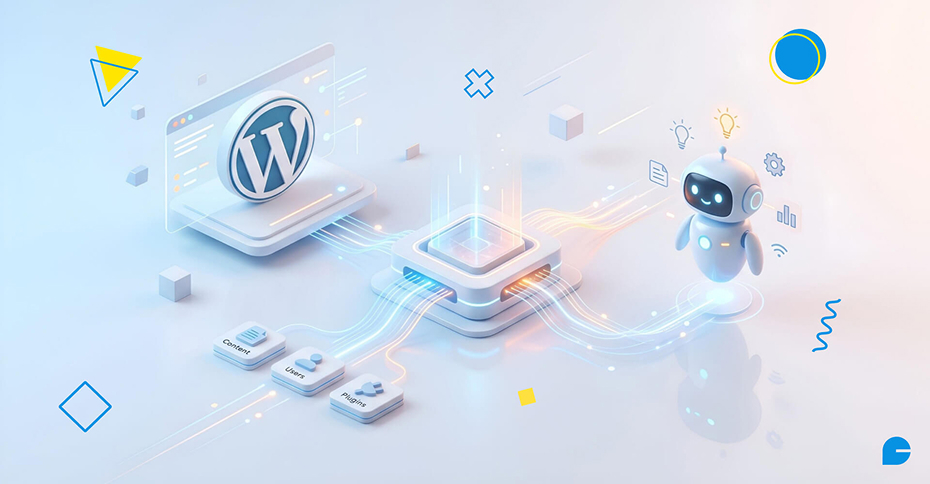
A traditional plugin adds a fixed set of features to your dashboard. MCP is different – it doesn’t add features itself; it exposes the actions WordPress (and your other plugins) can already do to any AI agent that asks. That’s why its capabilities grow automatically as more plugins adopt the Abilities API, without you installing anything new.
FAQs
1. What is MCP in WordPress?
MCP (Model Context Protocol) is an open standard that lets AI assistants like Claude and ChatGPT connect to WordPress and perform actions – drafting posts, uploading media, managing plugins, through WordPress’s existing REST API.
2. Do I need to be a developer to set up WordPress MCP?
No. Hosted MCP connector plugins are designed for non-developers: install, activate, copy a URL into your AI tool, and authorize. The official MCP Adapter route is developer-oriented and needs manual configuration.
3. Is it safe to let an AI agent manage my WordPress site?
Yes, when set up correctly. Access is scoped to a WordPress user role, credentials are stored as revocable application passwords, and new content defaults to draft status rather than publishing live.
4. Which AI tools work with WordPress MCP?
Claude (web, desktop, and Code), ChatGPT, Cursor, and Windsurf are common options. Because MCP is an open protocol, any AI tool that adopts the standard can connect the same way.
5. Does this work with WordPress.com?
Most third-party MCP connectors are built for self-hosted WordPress (WordPress.org). WordPress.com has its own separate built-in MCP setup.
Conclusion
MCP turns WordPress into a site your AI assistant can actually operate-not just write about. For agencies and business owners, that means less time in wp-admin and more time on strategy, while WordPress’s existing permission and draft systems keep changes safe and reversible. As more plugins adopt the Abilities API, expect AI agents to handle an increasing share of routine site management.
If you’d rather have this set up correctly the first time-with the right user roles, security settings, and AI workflows configured for your business – our WordPress development InCreativeWeb team can handle the entire integration for you.
Want AI agents safely integrated into your WordPress workflow? Our WordPress Development team sets up secure MCP connections, role-based access, and AI-ready site architecture – done right, the first time.
Author
Jayesh Patel
Jayesh Patel is a Professional Web Developer & Designer and the Founder of InCreativeWeb.
As a highly Creative Web/Graphic/UI Designer - Front End / PHP / WordPress / Shopify Developer, with 14+ years of experience, he also provide complete solution from SEO to Digital Marketing. The passion he has for his work, his dedication, and ability to make quick, decisive decisions set him apart from the rest.
His first priority is to create a website with Complete SEO + Speed Up + WordPress Security Code of standards.